Is a Windows 11 “performance boost” silently crashing your games, apps, or entire PC?
Hardware-Accelerated GPU Scheduling can reduce latency and improve responsiveness, but on some systems it triggers freezes, black screens, driver resets, stuttering, or sudden reboots.
The problem usually comes down to a fragile mix of GPU drivers, Windows updates, BIOS settings, overlays, and power-management behavior-not necessarily a failing graphics card.
This guide walks through the safest ways to identify the cause, disable or tune the feature, update the right components, and restore stability without guesswork.
What Causes Hardware-Accelerated GPU Scheduling Crashes in Windows 11?
Hardware-Accelerated GPU Scheduling crashes usually happen when Windows 11 hands more graphics scheduling work to the GPU driver, but the driver, game engine, or background software does not handle it cleanly. This is common after a Windows Update, NVIDIA GeForce Driver update, AMD Adrenalin update, or BIOS change that alters how the graphics card manages memory and power.
In real-world troubleshooting, one frequent example is a gaming PC that runs normally on the desktop but crashes when launching DirectX 12 games, streaming through OBS, or using GPU-heavy apps like Adobe Premiere Pro. The system may show black screens, driver timeout errors, frozen gameplay, or Event Viewer messages such as “Display driver stopped responding.”
- Outdated or unstable GPU drivers: A bad driver version can conflict with Windows 11 graphics settings, especially on high-end NVIDIA RTX and AMD Radeon cards.
- Overclocking and undervolting: Even a stable-looking GPU overclock can fail when HAGS changes workload timing and VRAM behavior.
- Conflicting overlays and monitoring tools: Apps like MSI Afterburner, Xbox Game Bar, Discord overlay, and GeForce Experience can interfere with frame scheduling.
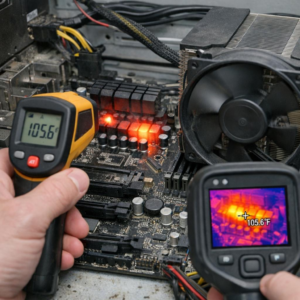
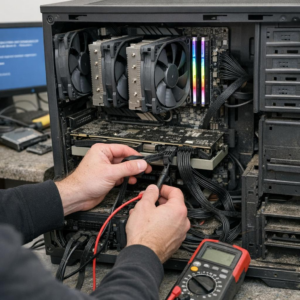
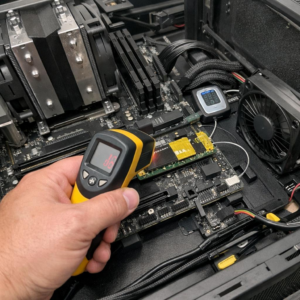
Hardware issues can also make HAGS crashes worse. Weak power supplies, overheating GPUs, faulty RAM, or an aging SSD can trigger crashes that look like a Windows 11 graphics problem, so checking temperatures, power delivery, and system logs is often more useful than simply reinstalling the game.
How to Fix Windows 11 GPU Scheduling Crashes with Driver, Settings, and System Repairs
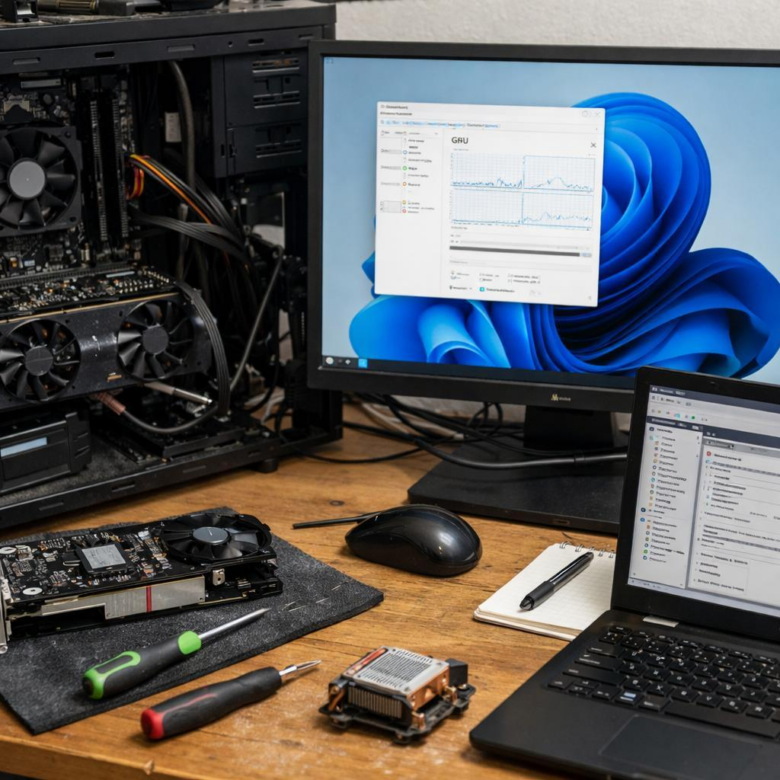
Start by treating Hardware-Accelerated GPU Scheduling as a stability setting, not a performance guarantee. If Windows 11 crashes during gaming, video editing, streaming, or browser-based GPU acceleration, turn it off first under Settings > System > Display > Graphics > Change default graphics settings, then reboot and test the same workload again.
Next, clean up the graphics driver properly. In real-world troubleshooting, I often see crashes continue after a normal driver update because old NVIDIA, AMD, or Intel files are still present. Use Display Driver Uninstaller (DDU) in Safe Mode, then install the latest WHQL driver from NVIDIA GeForce Experience, AMD Software: Adrenalin Edition, or Intel Driver & Support Assistant.
- Disable GPU Scheduling and test before changing multiple settings.
- Remove unstable GPU overclocks, undervolts, and third-party tuning profiles.
- Update Windows 11, chipset drivers, BIOS/UEFI, and monitor firmware where available.
If the crash appears only in one app, check its graphics settings. For example, Adobe Premiere Pro, DaVinci Resolve, Chrome, Discord, and Microsoft Edge can crash when hardware acceleration conflicts with a driver bug. Turning off hardware acceleration inside the app is often cheaper and faster than replacing a graphics card or paying for computer repair services.
Finally, repair Windows system files to rule out OS corruption. Open Terminal as administrator and run sfc /scannow, followed by DISM /Online /Cleanup-Image /RestoreHealth. If crashes continue after clean drivers and system repair, inspect GPU temperature, power supply quality, and Event Viewer logs for hardware-related errors.
Common Hardware-Accelerated GPU Scheduling Mistakes That Trigger Instability
One of the most common mistakes is enabling Hardware-Accelerated GPU Scheduling right after a major Windows 11 update without checking the graphics driver first. I’ve seen gaming PCs crash in titles like Warzone or Cyberpunk simply because Windows installed a basic display driver over a tuned NVIDIA or AMD package.
Before blaming the feature, confirm the driver version in NVIDIA GeForce Experience, AMD Software: Adrenalin Edition, or Intel Driver & Support Assistant. A clean driver installation often fixes black screens, display driver timeout errors, and random reboot issues better than repeatedly toggling the setting.
- Mixing old GPU drivers with new Windows builds: This can cause crashes during gaming, video editing, or streaming.
- Overclocking while testing HAGS: GPU undervolts, memory overclocks, and aggressive fan curves can make troubleshooting misleading.
- Ignoring background overlays: Discord, Xbox Game Bar, MSI Afterburner, and recording tools can conflict with frame scheduling.
Another mistake is testing stability in only one app. For example, a PC may pass a quick desktop check but crash during Adobe Premiere Pro exports or long gaming sessions because GPU memory load is much higher.
Use a simple process: disable overclocks, update the chipset and display drivers, then test one demanding workload at a time. If crashes stop after turning off overlays or rolling back a graphics driver, the issue is probably software compatibility-not a failing graphics card or expensive hardware replacement.
Wrapping Up: Resolving Hardware-Accelerated GPU Scheduling Crashes in Windows 11 Insights
Hardware-Accelerated GPU Scheduling is worth using only when it improves stability as well as performance. If crashes, black screens, or driver resets continue after updating Windows, reinstalling GPU drivers, and checking overlays or overclocks, the practical choice is to disable HAGS and prioritize a stable system.
For most users, the performance difference is small, while reliability issues can be disruptive. Treat HAGS as an optional optimization rather than a required Windows 11 feature. Enable it after major driver updates only if your games, creative apps, and daily workload remain stable under real use.