Is your “fast” NVMe SSD quietly cutting its own speed in half?
In high-performance workstations, thermal throttling can turn large file transfers, 4K/8K editing, CAD workloads, database tasks, and scratch-disk operations into unpredictable slowdowns.
The challenge is that NVMe heat issues often look like software problems: random performance drops, stuttering timelines, longer render exports, or benchmark results that collapse after a few minutes.
This guide shows you how to confirm thermal throttling, read SSD temperature data correctly, identify airflow and heatsink problems, and apply practical fixes before replacing perfectly good hardware.
What NVMe SSD Thermal Throttling Looks Like in Workstation Workloads
NVMe SSD thermal throttling usually shows up as sudden, repeatable slowdowns during heavy workstation storage tasks, not as a constant “slow drive.” A system may feel perfectly fast while opening apps, then drop sharply during 4K video editing, large CAD project saves, virtual machine cloning, Unreal Engine builds, or copying multi-gigabyte datasets.
A common real-world example: a creator exporting high-bitrate footage in Adobe Premiere Pro sees the first few minutes run smoothly, then the timeline cache or export process starts stuttering as the SSD temperature climbs. In tools like CrystalDiskInfo, HWiNFO, or Samsung Magician, the drive may report temperatures near its controller limit, while write speed falls from PCIe Gen4 levels to something closer to SATA SSD performance.
The key sign is the pattern. Performance drops after sustained load, improves after a short idle period, then drops again when the workload resumes.
- Video production: proxy generation, cache writes, and export files pause or slow unexpectedly.
- Engineering workstations: large BIM, CAD, or simulation files save much slower after repeated writes.
- IT and development: VM snapshots, Docker images, database imports, or software builds become inconsistent.
Do not rely only on benchmark scores. A quick CrystalDiskMark run may finish before the SSD gets hot enough to throttle. For workstation troubleshooting, monitor temperature and write speed during the actual paid workload, such as a client video export, workstation backup, or project archive transfer. That gives a far more accurate picture of whether cooling, a heatsink, airflow, or a higher-end NVMe SSD is worth the cost.
How to Diagnose NVMe Temperature Spikes, Airflow Problems, and Performance Drops
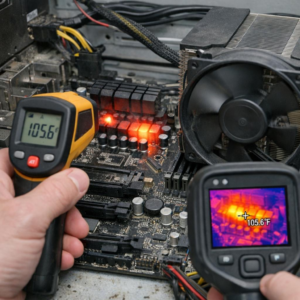
Start by logging NVMe temperature, controller load, and read/write speed at the same time. Tools like HWiNFO64, CrystalDiskInfo, Samsung Magician, WD Dashboard, or smartctl can show whether the SSD is hitting its thermal limit during video editing, 3D rendering, gaming, or large file transfers.
A useful test is to copy a large 100GB file or run a sustained benchmark such as CrystalDiskMark while watching the drive temperature. If performance starts high, then suddenly drops after the SSD reaches around 70°C or higher, you are likely seeing thermal throttling rather than a software or driver issue.
- Temperature spike: Fast rise under load, especially on PCIe 4.0 or PCIe 5.0 NVMe SSDs.
- Airflow problem: SSD runs hotter with the side panel closed or near a hot GPU backplate.
- Performance drop: Sequential write speed falls sharply during long transfers or workstation workloads.
In real workstation builds, I often see the worst temperatures on the motherboard M.2 slot directly under a high-end graphics card. For example, a drive may look fine at idle but throttle during a 4K video export because the GPU is dumping heat onto the NVMe heatsink with almost no fresh airflow.
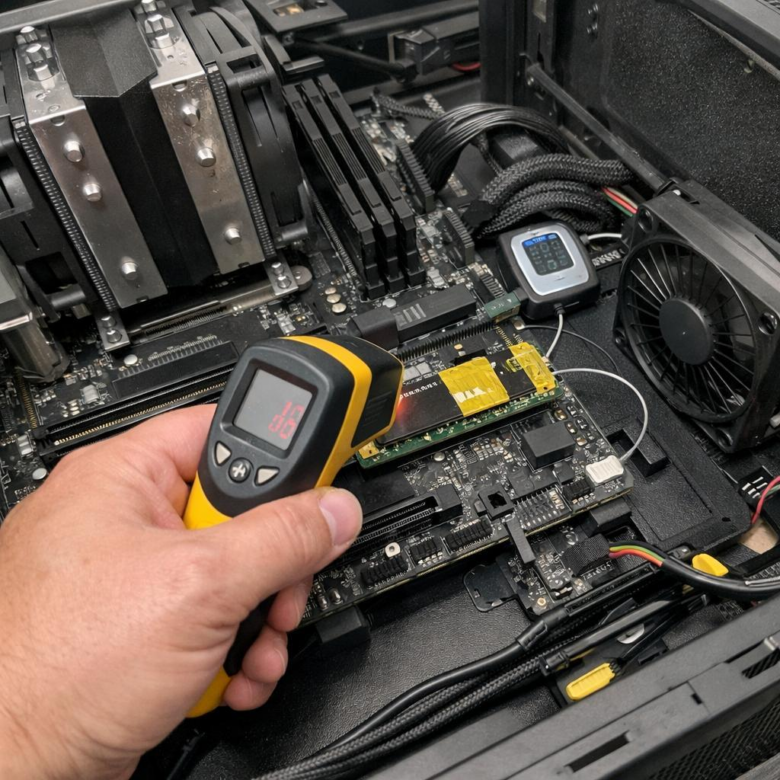
To confirm the cause, test with the case side panel removed and aim a small fan toward the M.2 area. If temperatures drop and sustained SSD performance improves, the fix is better case airflow, a quality NVMe heatsink, improved cable management, or relocating the drive to a cooler M.2 slot.
Advanced Fixes and Common Cooling Mistakes That Limit NVMe SSD Performance
If basic airflow changes do not stop NVMe SSD thermal throttling, look at contact pressure, motherboard slot placement, and firmware behavior. In high-end workstations, I often see PCIe 4.0 and PCIe 5.0 drives running hot because the included motherboard heatsink barely touches the controller, while the NAND stays unevenly cooled.
Use HWiNFO64 or Samsung Magician to compare controller temperature under a real workload, such as 4K video cache, virtual machine storage, or large CAD project exports. For example, a workstation used for Adobe Premiere Pro may throttle during proxy generation even if the case temperature looks fine, because the GPU exhaust is blowing directly across the M.2 slot.
- Check thermal pad thickness: pads that are too thin leave an air gap; pads that are too thick can bend the SSD or reduce contact pressure.
- Avoid stacking heatsinks: using a motherboard cover over an SSD heatsink can trap heat instead of removing it.
- Move the drive if possible: the M.2 slot under the graphics card is often the worst location for sustained write performance.
For demanding workloads, consider an aftermarket NVMe heatsink with a small fan, a workstation case with directed front-to-back airflow, or a PCIe M.2 adapter card with better spacing. These upgrades are usually cheaper than replacing an expensive high-capacity SSD or paying for professional data recovery after repeated heat-related instability.
A common mistake is cooling only the SSD while ignoring the rest of the system. If the CPU cooler, GPU, and case fans create negative pressure or recirculate hot air, even the best NVMe SSD cooler will have limited benefit.
Summary of Recommendations
NVMe thermal throttling is ultimately a system design issue, not just a drive issue. If temperatures stay high after basic fixes, treat airflow, slot placement, heatsink quality, workload intensity, and firmware behavior as one cooling chain. For most workstations, the right decision is practical: improve airflow first, add or upgrade the SSD heatsink next, then consider relocating the drive or choosing an NVMe model with better sustained-performance thermals. If throttling only appears during extreme transfers, it may be acceptable. If it affects daily workloads, address it immediately-consistent performance, drive longevity, and data reliability all depend on keeping NVMe temperatures under control.