What happens when a remote laptop is stolen before your security tools ever get a chance to respond?
For distributed teams, the endpoint is no longer just a device-it is a portable vault containing credentials, customer data, source code, and regulated information.
Hardware-level encryption protects that vault at the lowest practical layer, securing data even when a laptop is powered off, offline, or physically compromised.
This article explains how to implement it correctly for remote employee laptops, from TPM-backed encryption and BIOS controls to key recovery, compliance, and operational rollout.
What Hardware-Level Encryption Protects on Remote Employee Laptops-and Why Software-Only Controls Fall Short
Hardware-level encryption protects data before the operating system fully loads, which matters when a remote employee laptop is lost, stolen, or shipped for repair. Using a TPM 2.0 chip, self-encrypting SSD, or Apple Secure Enclave, encryption keys are tied to the device hardware rather than stored only in software where they are easier to extract or bypass.
In practice, this helps protect high-risk business data such as:
- Stored client files, contracts, financial records, and HR documents
- Cached emails, browser sessions, VPN profiles, and saved cloud credentials
- Source code, customer databases, and regulated data covered by compliance requirements
For example, if a sales manager leaves a Windows laptop in an airport lounge, full-disk encryption managed through Microsoft BitLocker and Microsoft Intune can prevent someone from removing the SSD and reading the data on another machine. That is a very different risk profile than relying only on a login password or endpoint antivirus.
Software-only controls still have value, but they often depend on the operating system being healthy, patched, and running. If an attacker boots from external media, clones the drive, or targets offline data, tools like standard password protection, remote wipe, or data loss prevention software may not respond in time.
The strongest setup combines hardware-backed encryption with MDM enforcement, secure boot, recovery key escrow, and endpoint security monitoring. This approach reduces exposure, supports cyber insurance and compliance audits, and gives IT teams a practical way to secure remote work devices without relying on employees to make perfect security decisions every day.
How to Deploy TPM, Self-Encrypting Drives, and Pre-Boot Authentication Across a Remote Workforce
Start by standardizing laptop models that include TPM 2.0 and Opal 2.0-compliant self-encrypting drives, then enroll every device in a central endpoint management platform such as Microsoft Intune, VMware Workspace ONE, or Jamf Pro. This lets IT enforce encryption policies, escrow recovery keys, verify device health, and block non-compliant laptops from accessing corporate apps.
For Windows fleets, pair TPM with BitLocker and configure policies for silent encryption, recovery key backup to Azure AD, and compliance reporting. For higher-risk users, such as finance teams, legal staff, or executives carrying customer records, add pre-boot authentication so stolen laptops cannot reach the operating system login screen without a PIN or smart card.
- TPM: Protects encryption keys and supports secure boot validation.
- Self-encrypting drives: Reduce performance impact and simplify full-disk encryption at scale.
- Pre-boot authentication: Adds an extra barrier for laptops used outside trusted locations.
A practical rollout is to ship laptops already enrolled through Windows Autopilot, with BitLocker enabled on first sign-in and recovery keys stored automatically. In one common real-world setup, a remote employee receives a sealed laptop, connects to Wi-Fi, signs in with company credentials, and the device applies encryption, VPN, EDR, and conditional access policies without a help desk call.
Test recovery workflows before mass deployment. Lost PINs, motherboard replacements, and failed BIOS updates can become expensive support issues if recovery keys are not accessible to authorized IT staff. The best security program balances strong hardware-level encryption with manageable support costs and clear remote laptop security procedures.
Common Hardware Encryption Deployment Mistakes That Weaken Laptop Security and Compliance
One of the biggest mistakes is assuming that hardware encryption is active just because a laptop has a TPM, self-encrypting drive, or modern SSD. In real deployments, I’ve seen remote laptops shipped with BitLocker “available” but not enforced because the device was never properly enrolled in Microsoft Intune or joined to the right compliance policy.
Another issue is poor recovery key management. Storing BitLocker or FileVault recovery keys in spreadsheets, email threads, or local admin notes creates a serious audit and data breach risk, especially for healthcare, finance, and legal teams handling regulated data.
- No pre-boot authentication: TPM-only encryption is convenient, but stolen laptops may still be vulnerable if attackers can access cached credentials or exploit weak login controls.
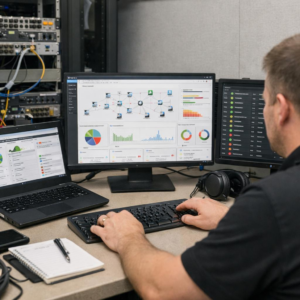
- Unverified encryption status: IT teams should regularly confirm encryption health through tools like Jamf Pro, Intune, or endpoint security dashboards, not manual checklists.
- Ignoring firmware and BIOS settings: Disabled Secure Boot, outdated BIOS versions, or misconfigured TPM settings can reduce the protection expected from hardware-based encryption.
A practical example: a sales employee loses a laptop at an airport. If encryption is enabled, recovery keys are escrowed centrally, and the device shows compliant in endpoint management, the incident is usually manageable; if not, the company may face breach notification costs, cyber insurance scrutiny, and compliance penalties.
The fix is simple but disciplined: standardize laptop encryption policies, test recovery workflows, document exceptions, and include encryption status in every remote device compliance review.
The Bottom Line on Implementing Hardware-Level Encryption for Remote Employee Laptops
Hardware-level encryption turns a lost or stolen remote laptop from a business crisis into a controlled security event. The key decision is not whether encryption is useful, but whether it is enforced, centrally managed, and tied to clear recovery and access policies.
- Choose devices with TPM support and proven full-disk encryption compatibility.
- Enforce encryption before employees receive production access.
- Manage recovery keys, updates, and compliance reporting centrally.
For remote teams, the practical standard is simple: no unmanaged encryption, no sensitive data on the device.