Your flagship GPU is probably wasting power-and turning it into heat you don’t need.
Modern high-end graphics cards are built to chase peak boost clocks, often using more voltage than necessary to stay stable across every possible chip sample.
Undervolting lets you cut that excess voltage while preserving most-or even all-of your gaming and rendering performance, lowering temperatures, fan noise, and power draw in the process.
Done correctly, it’s one of the safest and most effective ways to make an expensive GPU run cooler, quieter, and potentially last longer without physically modifying the card.
What GPU Undervolting Does: Voltage-Frequency Curves, Power Draw, and Thermal Headroom
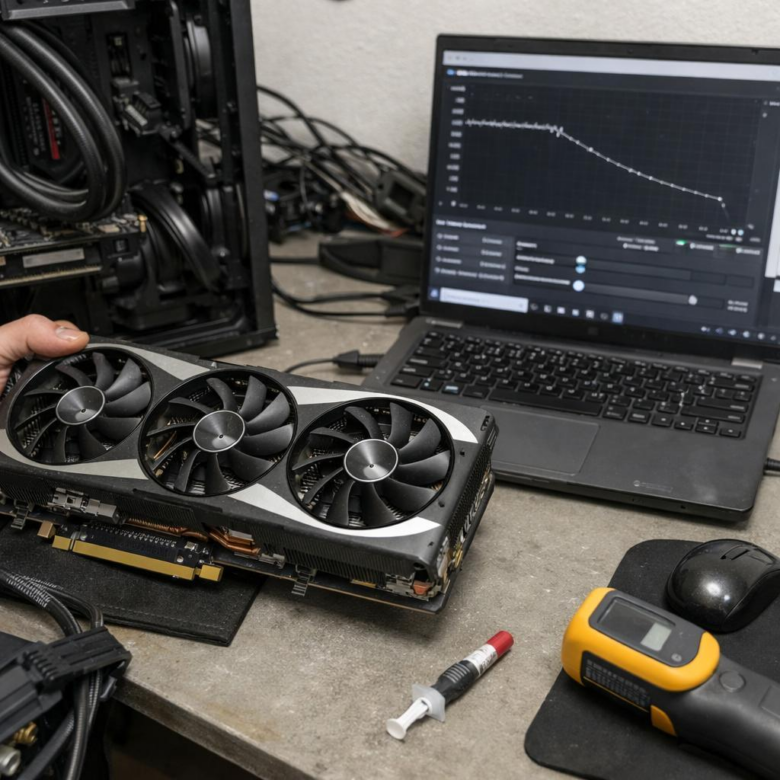
GPU undervolting changes how much voltage your graphics card uses at a given clock speed. Modern high-end GPUs follow a voltage-frequency curve: higher clock speeds usually demand higher voltage, which increases power draw, heat output, and fan noise. By tuning that curve in a tool like MSI Afterburner, you can often keep near-stock gaming performance while asking the GPU to run at a lower voltage.
For example, a card boosting around 2700 MHz at 1.05 V may be stable near the same frequency at 0.95 V, depending on silicon quality, cooling, and workload. In real gaming PCs, this can reduce GPU temperature spikes, lower case heat, and make the system less dependent on aggressive fan curves. The benefit is especially noticeable in compact builds, high-refresh 1440p gaming, 4K gaming, and workstations running CUDA, rendering, or AI workloads for long sessions.
- Lower voltage: reduces electrical stress and wasted heat.
- Lower power draw: can improve efficiency and reduce PSU load.
- More thermal headroom: helps the GPU sustain boost clocks instead of throttling.
The key is stability, not chasing the lowest possible number. A good undervolt should pass demanding games, benchmark tools, and real workloads without driver crashes, artifacting, or sudden clock drops. In practice, a carefully tuned voltage-frequency curve can be more valuable than a basic power limit because it targets the exact efficiency point where your specific GPU performs best.
How to Undervolt a High-End GPU Safely Using MSI Afterburner or AMD Adrenalin
Start by installing a monitoring tool such as MSI Afterburner, AMD Adrenalin, or HWiNFO so you can watch GPU temperature, clock speed, voltage, power draw, and hotspot temperature in real time. Before changing anything, run a baseline test in a demanding game or benchmark like 3DMark Time Spy, Cyberpunk 2077, or Alan Wake 2 and note the average FPS, peak temperature, and wattage.
For NVIDIA GPUs, open MSI Afterburner, press Ctrl + F to open the voltage/frequency curve editor, then choose a reasonable voltage target such as 900-950 mV for many RTX 3080, RTX 4080, or RTX 4090 cards. Drag the curve so your desired clock speed lines up with that voltage, apply the setting, and save it as a profile. For example, an RTX 3080 that boosts near 1900 MHz at higher voltage may run cooler and quieter around 1800-1850 MHz at roughly 900 mV, depending on silicon quality and cooling.
For AMD Radeon cards, open AMD Adrenalin, go to Performance > Tuning, enable manual tuning, and lower the GPU voltage in small steps. Keep changes modest and test after each adjustment.
- Reduce voltage gradually, usually 25 mV at a time.
- Stress test for at least 15-30 minutes before saving the profile.
- Watch for driver crashes, flickering, stutter, or sudden FPS drops.
If instability appears, raise the voltage slightly or reduce the clock speed. The safest undervolt is not the lowest number possible; it is the setting that stays stable during real gaming, video editing, and long workloads while lowering heat, fan noise, and electricity cost.
Stability Testing and Common Undervolting Mistakes That Cause Crashes, Clock Drops, or Lost Performance
After applying an undervolt, do not trust a single benchmark run. Test the GPU in the workloads you actually use: gaming, rendering, video editing, AI upscaling, or VR. A profile that passes 3DMark can still crash in Cyberpunk 2077 with ray tracing, Blender, or Adobe Premiere Pro because each load stresses voltage, memory, and transient power differently.
A practical approach is to test in stages. Run a synthetic benchmark first, then play a demanding game for 30-60 minutes, and finally monitor real-time voltage, GPU clock, hotspot temperature, and power draw with HWiNFO64 or MSI Afterburner. If clocks slowly drop while temperatures look fine, the issue may be an unstable voltage-frequency curve or a power limit conflict, not cooling.
- Going too low too fast: dropping voltage aggressively often causes driver resets, black screens, or random app crashes.
- Ignoring memory overclocks: unstable VRAM can look like a bad undervolt, especially in high-resolution games or GPU rendering.
- Chasing the lowest wattage: saving another 10 watts is not worth losing boost clocks, frame pacing, or professional workload stability.
For example, an RTX 4080 may seem stable at 900 mV in a quick benchmark but show stutters after 20 minutes of 4K gaming. Raising the curve slightly to 925 mV can restore smooth frame times while still reducing heat, fan noise, and long-term GPU stress. That is the real goal: efficient performance, not the lowest number in the voltage slider.
Wrapping Up: How to Undervolt High-End GPUs for Better Thermals and Longevity Insights
Undervolting a high-end GPU is worth doing when you want lower heat, quieter fans, and steadier performance without sacrificing much speed. The best approach is conservative: make small voltage adjustments, stress test thoroughly, and keep a saved fallback profile.
Practical takeaway: if your card runs hot, loud, or close to its power limit, undervolting is one of the safest tuning methods available. If you need absolute maximum benchmark scores, leave more voltage headroom. For most gamers and creators, a stable undervolt offers the better long-term balance between performance, efficiency, and hardware longevity.