Is Windows 11 leaving CPU performance on the table? If your processor has 12, 16, or 32 threads, default settings can quietly limit the speed you paid for.
Multi-threaded performance depends on more than raw CPU specs. Power plans, background services, scheduler behavior, thermal limits, virtualization features, and BIOS settings can all decide whether workloads scale cleanly-or stall under pressure.
This guide focuses on practical Windows 11 optimizations for heavy parallel workloads: rendering, compiling, simulation, data processing, virtual machines, and workstation-class multitasking.
The goal is simple: reduce overhead, keep cores fed, prevent unnecessary throttling, and make Windows 11 behave like a performance platform instead of a convenience-first desktop.
What Determines Multi-Threaded CPU Performance in Windows 11?
Multi-threaded CPU performance in Windows 11 depends on more than the number of cores printed on the processor box. The real result comes from how well Windows schedules workloads, how much power the CPU is allowed to use, and whether cooling, memory, and background services are holding it back.
In practical terms, a 16-core workstation CPU can underperform if it is stuck in a quiet power profile, thermal throttling under a weak cooler, or waiting on slow RAM during heavy workloads. I’ve seen video editors gain smoother exports simply by switching from a balanced laptop mode to a high-performance power plan while plugged in, then verifying clock speeds with HWiNFO.
- Core and thread count: More threads help with rendering, compiling code, virtualization, data analysis, and CPU-based encoding.
- Clock speed under load: Sustained boost frequency matters more than short peak speeds advertised in marketing.
- Memory and storage: Fast DDR5 RAM and a quality NVMe SSD reduce bottlenecks in professional software and large project files.
Windows 11 also relies heavily on the CPU scheduler, especially with hybrid processors that use Performance cores and Efficiency cores. Apps like Adobe Premiere Pro, Blender, Visual Studio, VMware Workstation, and DaVinci Resolve benefit when high-priority threads are assigned correctly and background tasks are kept under control.
For accurate tuning, use benchmarking software such as Cinebench, Geekbench, or Windows Task Manager to compare performance before and after changes. The goal is not just a higher benchmark score, but stable, repeatable performance during real paid work, gaming, streaming, or content creation.
How to Configure Windows 11 Power, Scheduling, and Background Processes for Higher Core Utilization
Start with the power plan because Windows 11 can leave performance on the table when it aggressively parks cores or downclocks the processor. Go to Settings > System > Power & battery and set Power mode to Best performance; on desktops and high-end workstations, also enable the High performance or Ultimate Performance plan from Control Panel if available.
For CPU-heavy workloads like Blender rendering, Visual Studio builds, virtualization, or large data processing jobs, keep the system plugged in and make sure processor cooling is set to active. In real workstation tuning, I often see laptops lose sustained multi-threaded performance simply because Windows is balancing fan noise and battery life instead of allowing all cores to boost consistently.
- Disable unnecessary startup apps in Task Manager to reduce background CPU interrupts.
- Pause OneDrive sync, game launchers, and browser updaters during long renders or benchmarks.
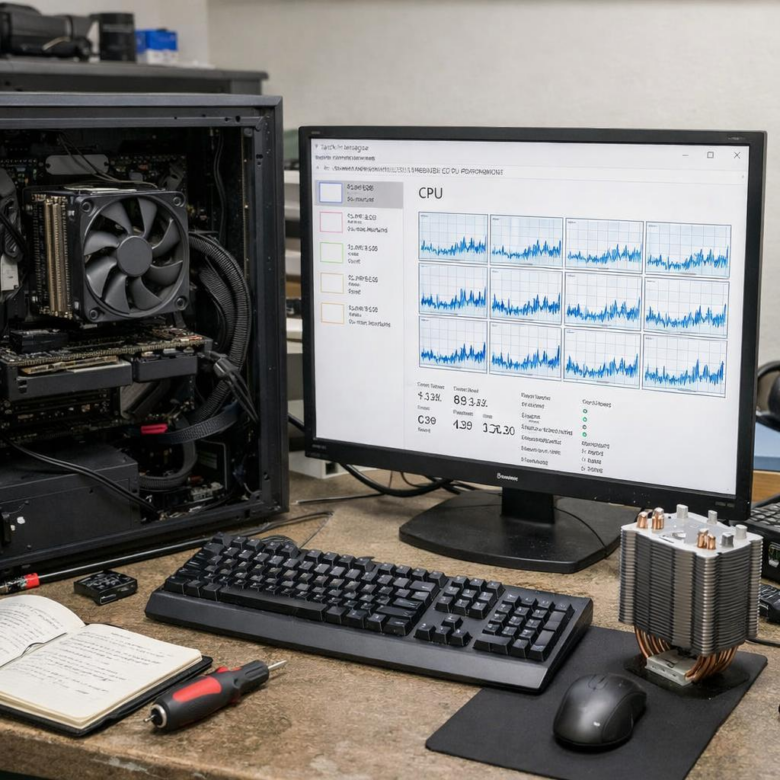
- Use Windows Performance Monitor or HWiNFO to watch core clocks, CPU package power, and thermal throttling.
Windows 11’s scheduler generally handles modern Intel and AMD CPUs well, but background processes can still steal cycles from high-priority tasks. For advanced control, tools like Process Lasso let you set CPU affinity, process priority, and performance profiles without manually changing settings every session.
A practical example: if you are exporting a 4K video while running Chrome, Teams, and cloud backup software, assign the encoder higher priority and close sync-heavy apps until the export finishes. This improves core availability and makes CPU performance more predictable, especially on professional content creation PCs and business laptops with limited thermal headroom.
Advanced Windows 11 CPU Optimization Mistakes That Limit Multi-Core Performance
One of the biggest mistakes is assuming that “High performance” automatically means better multi-core CPU performance. On many modern Intel Core and AMD Ryzen systems, the wrong power plan can increase heat without improving workload speed, especially in video editing, software development, virtualization, or 3D rendering. Use HWiNFO64 or Windows Resource Monitor to check whether all cores are boosting correctly under real load, not just sitting at high clock speeds on the desktop.
Another common issue is disabling background services too aggressively. I’ve seen workstations lose performance in Adobe Premiere Pro and Docker because users disabled Windows Update services, chipset utilities, or security components that indirectly affected drivers, scheduling, and hardware acceleration. Tune startup apps first, but avoid random “Windows debloat” scripts unless you understand every change.
- Ignoring chipset drivers: Install the latest AMD chipset driver or Intel platform driver from the manufacturer, not only Windows Update.
- Forcing CPU affinity: Manually assigning cores in Task Manager can reduce thread scheduling efficiency for multi-threaded applications.
- Overusing cheap optimizer apps: Many PC optimization tools close useful processes while offering little measurable benefit.
Thermal management is another overlooked factor. A powerful processor in a thin laptop may throttle after a few minutes, making a cooling pad, BIOS fan profile, or better thermal paste more valuable than another registry tweak. For serious workloads, monitor CPU package temperature, power limits, and core utilization before spending money on premium optimization software or hardware upgrades.
Final Thoughts on How to Optimize Windows 11 for Maximum Multi-Threaded CPU Performance
Optimizing Windows 11 for multi-threaded CPU performance is ultimately about removing limits, not chasing every tweak. The best results come from matching the operating system, firmware, cooling, power settings, and workload behavior so the processor can sustain high utilization without throttling or unnecessary scheduling overhead.
- For creators and engineers: prioritize stability, cooling, and sustained boost clocks.
- For power users: tune selectively, then validate with real benchmarks.
- For everyday systems: avoid aggressive changes that increase heat, noise, or power draw without measurable gains.
The right configuration is the one that improves throughput while keeping the system reliable under real workloads.