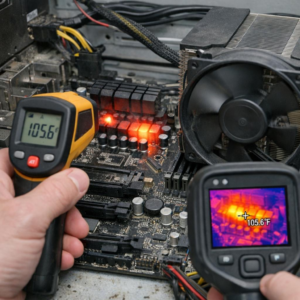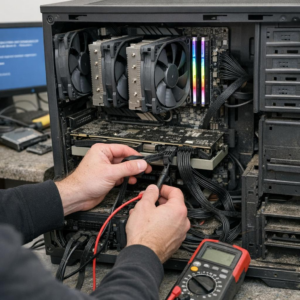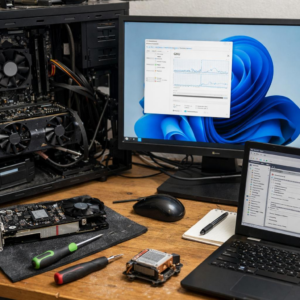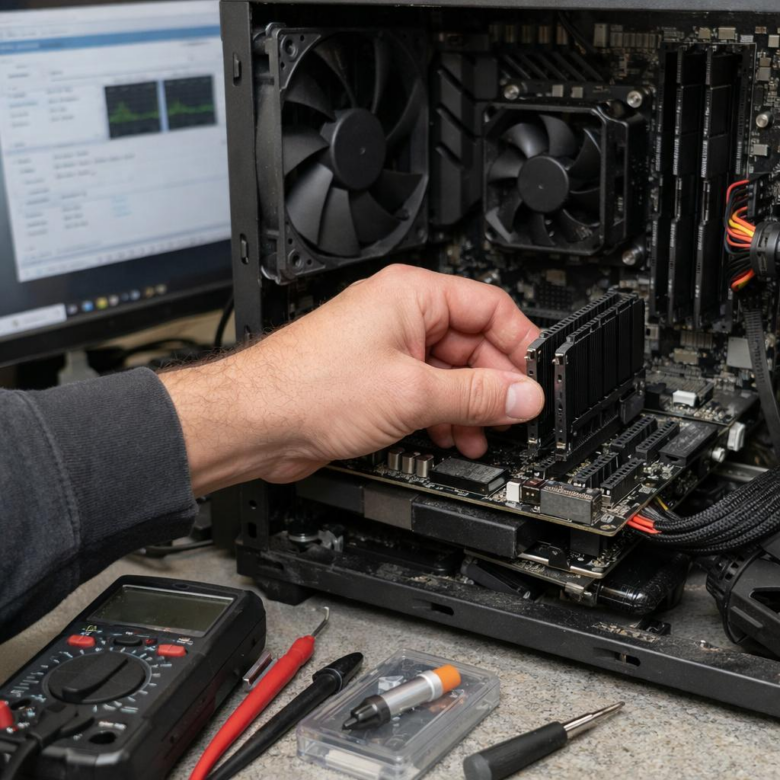
Your PC may not be “randomly” freezing – your RAM overclock could be quietly failing.
XMP profiles promise easy performance gains, but an unstable memory profile can cause hard freezes, app crashes, black screens, and reboots with no clear error message.
The frustrating part is that the system may boot normally and even pass light use, then lock up during gaming, rendering, browsing, or idle background tasks.
This guide explains how to confirm whether XMP is the culprit, stabilize your memory settings, and keep the performance boost without sacrificing reliability.
Why Unstable XMP Profiles Cause Random Freezes, Crashes, and Memory Errors
XMP profiles push your RAM beyond the basic JEDEC speed by applying higher frequency, tighter timings, and increased voltage automatically. The problem is that “rated speed” depends on the memory kit, motherboard, CPU memory controller, BIOS version, and even how many RAM sticks are installed. If one part of that chain is slightly weak, the system may boot fine but fail under real workloads.
That is why unstable XMP often feels random. A PC might browse the web for hours, then freeze during gaming, video editing, virtual machines, or large file compression because those tasks stress memory bandwidth and latency harder. In real-world troubleshooting, I often see systems with 32GB or 64GB DDR4/DDR5 kits pass a quick boot test but crash in games or throw errors in MemTest86 after XMP is enabled.
Common signs of an unstable memory overclock include:
- Random Windows freezes with no clear error message
- Blue screen errors such as MEMORY_MANAGEMENT or IRQL_NOT_LESS_OR_EQUAL
- Game crashes, corrupted downloads, or failed software installations
The risk is higher with four-DIMM setups, mixed RAM kits, budget motherboards, or older BIOS firmware. Even premium gaming PCs and workstations can suffer if the CPU’s integrated memory controller cannot handle the advertised XMP speed reliably.
For a practical check, disable XMP in BIOS and run the same workload again. If the freezes stop, the issue is likely memory stability, not a faulty SSD, graphics card, or expensive Windows repair service.
How to Stabilize XMP Settings with BIOS Voltage, Frequency, and Timing Adjustments
If XMP causes random freezes, start by treating the profile as a baseline, not a guaranteed setting. Enter your motherboard BIOS or UEFI, enable XMP, then manually reduce the memory frequency one step-for example, drop DDR5-6000 to DDR5-5600 or DDR4-3600 to DDR4-3466. This small change often fixes instability without a noticeable performance loss in gaming PCs, content creation workstations, or daily productivity systems.
Next, check DRAM voltage. Many DDR4 kits run XMP at 1.35V, while DDR5 kits commonly use higher vendor-specified voltages, so match the RAM label or the manufacturer’s product page first. If freezes continue, a tiny increase within safe limits may help, but avoid aggressive voltage changes unless you understand your motherboard BIOS settings and cooling setup.
- Lower frequency first: it is usually safer than raising voltage immediately.
- Relax timings slightly: changing CL36 to CL38, for example, can improve memory stability.
- Test after every change: use MemTest86, OCCT, or TestMem5 before assuming the system is fixed.
A real-world pattern I see often: a 32GB DDR5 kit rated for 6000 MT/s freezes during browser use or video editing, yet becomes fully stable at 5600 MT/s with the same voltage and slightly looser timings. That points to memory controller limits, not necessarily defective RAM. Also update the BIOS, because motherboard vendors frequently improve RAM compatibility through firmware updates, especially on newer AMD Ryzen and Intel platforms.
Common XMP Troubleshooting Mistakes That Make System Freezes Worse
One of the biggest mistakes is changing too many BIOS settings at once. If you enable XMP, raise DRAM voltage, tweak timings, and update CPU overclock settings in the same session, you will not know what actually caused the freeze. Start with one change, then test stability with MemTest86 or OCCT before touching anything else.
Another common error is assuming the advertised RAM speed is guaranteed on every system. A DDR5-6000 kit may be rated for that speed, but your motherboard, CPU memory controller, BIOS version, and DIMM layout all matter. I have seen gaming PCs freeze randomly at 6000 MT/s but run perfectly at 5600 MT/s with the same memory kit, simply because the CPU’s memory controller could not handle the higher profile reliably.
- Ignoring BIOS updates: motherboard firmware often improves RAM compatibility, especially on newer AMD Ryzen and Intel platforms.
- Mixing RAM kits: two kits with the same capacity and speed can still use different memory chips and unstable subtimings.
- Skipping long stress tests: a system that boots Windows is not automatically stable under gaming, video editing, or virtual machine workloads.
Do not keep forcing the same XMP profile after repeated freezes. That can corrupt Windows files, interrupt driver updates, or cause failed project exports on a workstation. If stability matters, it is often better to use a slightly lower memory speed with tighter reliability than pay for unnecessary PC repair service after preventable crashes.
Final Thoughts on Fixing Random System Freezes Caused by Unstable XMP Profiles
Random freezes under XMP are a stability warning, not a mystery fault. If stock memory settings are stable, the profile is simply too aggressive for your specific CPU, motherboard, RAM kit, or BIOS combination. The right decision is to favor reliability over headline memory speed.
- Keep XMP only if it survives extended stress testing and normal workloads.
- Use manual tuning or a lower frequency if freezes return.
- Update BIOS and verify voltages before replacing hardware.
- If stability matters most, run conservative settings instead of chasing peak bandwidth.