Your $6,000 rendering workstation should not reboot like a cheap office PC.
Kernel Power Event 41 is Windows’ blunt way of saying the system lost power, crashed, or restarted before it could shut down cleanly-often right when your CPU and GPU are under the heaviest rendering load.
For high-end PCs, the cause is rarely “just Windows.” It can point to unstable overclocks, transient PSU spikes, overheating VRMs, faulty RAM, driver crashes, BIOS issues, or power delivery problems that only appear during sustained 3D rendering.
This guide cuts through generic advice and focuses on the checks that actually matter for render rigs: power stability, thermals, hardware stress testing, firmware settings, and the Windows logs that reveal where the failure begins.
What Kernel Power Event 41 Means on High-End Rendering PCs
Kernel Power Event 41 means Windows detected an unexpected shutdown or restart without a clean power-off sequence. On a high-end rendering PC, this usually happens when the system loses power, crashes under heavy GPU/CPU load, or reboots before Windows can write a proper error report.
For render workstations, the key point is this: Event 41 is a symptom, not the root cause. A 3D artist running Blender, V-Ray, Unreal Engine, or DaVinci Resolve may see this error after a long render because the PSU, GPU driver, CPU overclock, RAM profile, or thermal limit failed under sustained load.
A common real-world example is a workstation with an RTX 4090 and a high-core-count Ryzen or Intel CPU that runs fine for browsing, but restarts during GPU rendering. In that case, the Windows Event Viewer may show Kernel-Power 41, while tools like HWiNFO, OCCT, or NVIDIA System Management Interface can reveal power spikes, overheating VRMs, or unstable voltage behavior.
- Event 41 with BugcheckCode 0: often points to sudden power loss, PSU protection, or hard reset.
- Event 41 with a bugcheck value: usually means a BSOD occurred before the reboot.
- Event 41 during rendering only: suggests load-related instability, not a basic Windows issue.
This matters because replacing Windows or reinstalling drivers may not fix a hardware stability problem. For expensive rendering computers, checking power supply capacity, GPU power cables, BIOS settings, cooling performance, and workstation UPS quality is often more valuable than chasing the Event 41 message alone.
How to Diagnose Event 41 Crashes During CPU and GPU Render Loads
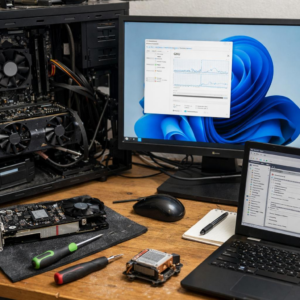
Start by confirming that Kernel Power Event 41 is happening during sustained render workloads, not random desktop use. Open Windows Event Viewer and check whether the shutdown lines up with Blender, V-Ray, DaVinci Resolve, Unreal Engine, or another CPU/GPU rendering job. If there is no blue screen code or dump file, treat it like a power delivery, thermal, BIOS, or hardware stability problem first.
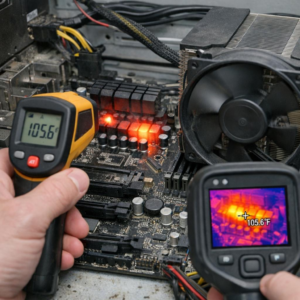
Use HWiNFO64 to log sensors while running a real render, not just a quick benchmark. Watch CPU package power, GPU hotspot temperature, 12V rail behavior, VRM temperatures, and whether the system cuts off instantly under combined load. A crash that happens only when the CPU and RTX GPU are both at full draw often points to the power supply, transient spikes, or an overloaded UPS.
- Run OCCT Power Test for a controlled CPU + GPU load.
- Run MemTest86 if crashes also occur during large scene loading.
- Disable CPU/GPU overclocks, XMP/EXPO, and undervolts temporarily.
A real-world pattern I see often is a 1000W workstation PSU passing gaming loads but failing during Redshift or OctaneRender because the GPU power spikes while the CPU is already rendering buckets. In that case, replacing the PSU with a higher-quality ATX 3.0 unit or testing without the UPS can reveal the issue quickly.
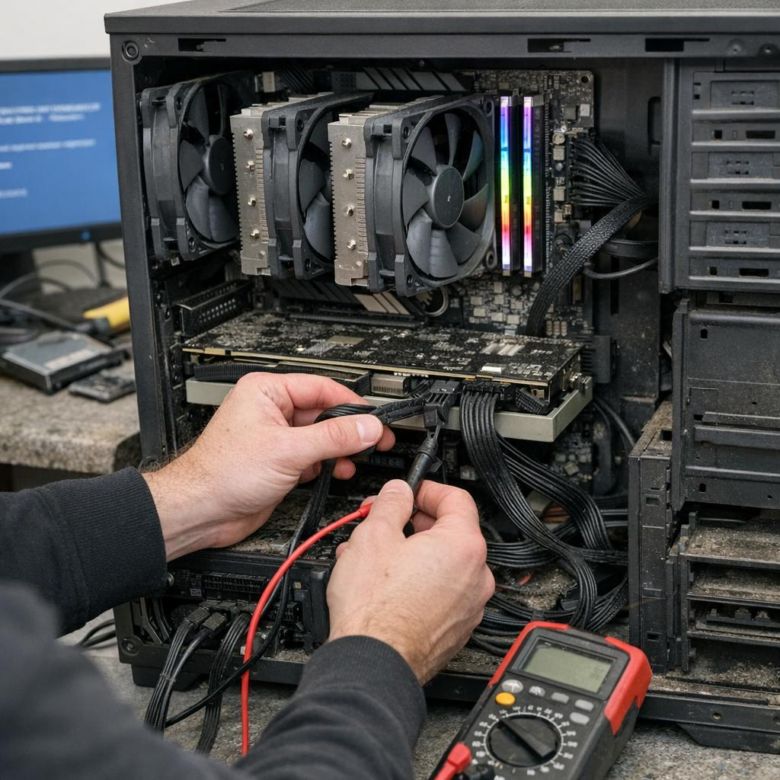
Also check power cables and motherboard connections. Separate PCIe power cables for each GPU connector are safer than daisy-chained leads in a high-end rendering PC. If logs show normal temperatures but the machine still powers off instantly, consider professional workstation diagnostics before replacing expensive parts blindly.
Power, Thermal, and BIOS Optimization Mistakes That Trigger Kernel Power 41
Kernel Power Event 41 often shows up after a hard shutdown, but the real cause in high-end rendering PCs is frequently unstable power delivery, aggressive BIOS tuning, or thermal protection kicking in under sustained load. Blender, Unreal Engine, DaVinci Resolve, and GPU render engines can expose weaknesses that normal gaming or office work never triggers.
One common mistake is running a premium GPU and CPU on a power supply that looks adequate on paper but cannot handle transient spikes. For example, I’ve seen a Ryzen 9 and RTX 4090 workstation reboot during OctaneRender because the PSU was an older 850W unit with poor transient response, even though average wattage looked safe in monitoring software.
- Check PSU quality, not just wattage: use an ATX 3.0/3.1 power supply from a reputable brand, especially for RTX 4080/4090-class GPUs.
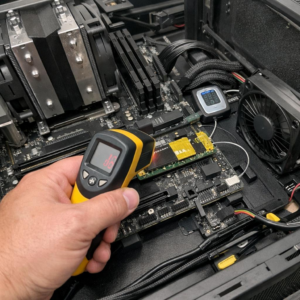
- Watch hotspot temperatures: tools like HWiNFO64 can reveal GPU hotspot, VRM, and CPU package temps that basic utilities miss.
- Undo risky BIOS settings: unstable XMP/EXPO, undervolting, Curve Optimizer, or unlocked power limits can all cause sudden restarts without a blue screen.
Thermal mistakes are just as common. A workstation may pass a short benchmark but crash after 40 minutes of 4K rendering because dust, weak case airflow, or a badly mounted AIO cooler lets VRM or memory temperatures climb silently.
Before replacing expensive PC components, reset BIOS to defaults, update motherboard firmware, test with XMP/EXPO disabled, and run a controlled stress test using OCCT or Cinebench plus a GPU render workload. If the system becomes stable at stock settings, the issue is usually tuning-related, not a Windows power management problem.
Final Thoughts on Fixing Kernel Power Event 41 Errors in High-End Rendering PCs
Kernel Power Event 41 is a symptom, not a diagnosis. In high-end rendering PCs, the winning approach is to treat every shutdown as a power, thermal, stability, or driver validation problem until testing proves otherwise.
- Start with PSU capacity, cabling, GPU transients, and CPU/GPU temperatures.
- Remove unstable overclocks before replacing hardware.
- Use stress tests and event timing to confirm the fix, not guesswork.
If crashes continue after clean power delivery, stable thermals, updated firmware, and stock settings, the smartest next step is targeted component testing or professional diagnostics before investing in replacements.