What good is 4K footage if it reaches you three seconds too late?
Wireless 4K security cameras can deliver sharp detail, but high resolution also puts heavy pressure on Wi-Fi, storage, apps, and cloud servers.
When latency creeps in, live view feels delayed, motion alerts arrive late, and two-way audio becomes frustrating or useless.
This guide breaks down the real causes of lag and shows you how to fix low-latency issues without sacrificing the video quality your camera was built to provide.
What Causes Low Latency Problems in Wireless 4K Security Cameras?
Most “low latency problems” in wireless 4K security cameras are actually caused by high network delay between the camera, router, NVR, mobile app, and cloud server. A 4K IP camera sends a heavy video stream, so weak WiFi signal, router congestion, or poor upload speed can quickly turn live view into a 5-20 second delay.
In real installations, I often see this happen when a camera is mounted outside on a garage, but the router is inside behind brick walls or metal doors. The camera may still show “connected,” but the signal quality is poor enough to cause buffering, dropped frames, and delayed motion alerts.
- Weak WiFi coverage: Long distance, thick walls, metal siding, and crowded 2.4 GHz channels can reduce video performance.
- Bandwidth overload: Multiple 4K cameras, smart TVs, gaming consoles, and cloud backups can compete for the same internet connection.
- Cloud processing delay: Cameras that rely on cloud storage subscriptions may take longer to deliver live video than a local NVR security camera system.
Router quality also matters. Budget routers often struggle with several high-resolution wireless security cameras, especially if they lack QoS settings, strong antennas, or modern WiFi 6 support.
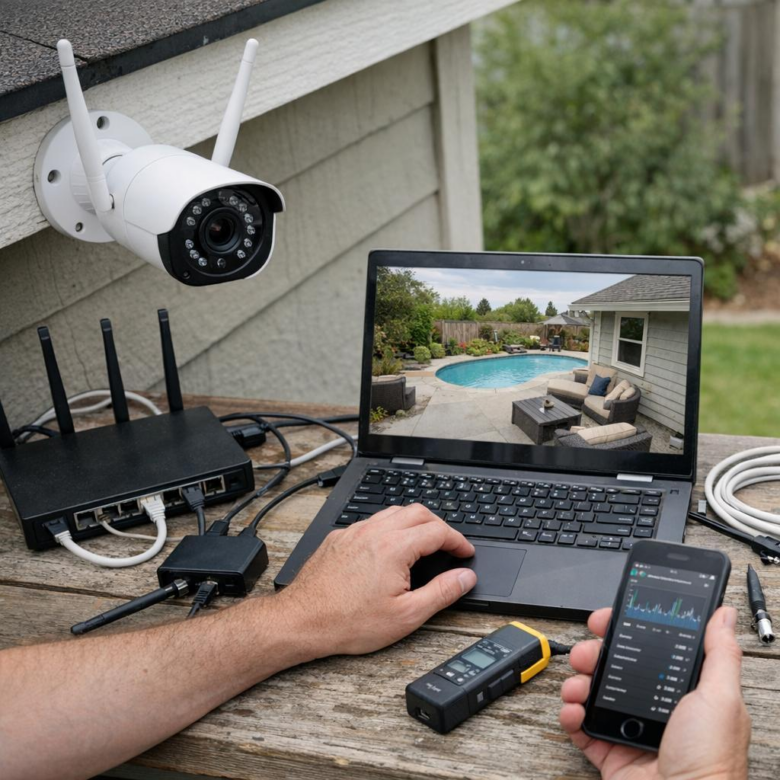
A practical way to identify the cause is to test signal strength and network traffic with tools like NetSpot or your router’s app, such as Ubiquiti UniFi Network. If latency improves when the camera is moved closer to the router, the issue is likely WiFi coverage-not the camera itself.
How to Reduce Wireless 4K Security Camera Latency Through Network and Camera Settings
Start by separating your wireless 4K security cameras from regular home traffic. If your router supports it, create a dedicated 5GHz SSID or VLAN for cameras only, then keep phones, smart TVs, and gaming devices off that network. In real installations, I’ve seen driveway camera delay drop noticeably just by moving streaming devices to a different Wi-Fi band.
Use a Wi-Fi analyzer such as NetSpot or Ubiquiti WiFiman to check signal strength, channel congestion, and interference near each camera. For low latency video surveillance, aim for a strong 5GHz signal and avoid crowded channels used by nearby routers. If the camera is far from the access point, a wired PoE camera, mesh access point, or outdoor Wi-Fi extender may be more cost-effective than constantly lowering video quality.
- Lower the bitrate slightly: Keep 4K resolution, but reduce bitrate until live view becomes smooth without obvious image loss.
- Reduce frame rate: 15-20 fps is usually enough for security monitoring and uses less bandwidth than 30 fps.
- Use H.265 compression: It can reduce network load compared with H.264 if your NVR or security camera software supports it.
Also check camera settings for “substream” or “fluent mode” in apps like Blue Iris, Reolink, Hikvision, or Dahua. Use the lower-resolution substream for live viewing on mobile, while recording the main 4K stream to your NVR or cloud storage. This keeps remote viewing responsive without sacrificing evidence-quality footage.
Advanced Optimization Mistakes That Keep 4K Security Camera Feeds Lagging
One common mistake is upgrading the camera but leaving the network design untouched. A 4K wireless security camera with AI motion detection, cloud recording, and two-way audio can overload an older router, especially if several devices are also using video conferencing, streaming services, or smart home automation.
Another overlooked issue is recording mode. Continuous 4K upload to cloud storage can create latency even when the live view looks fine during setup. In one residential install, switching the driveway camera from 24/7 cloud recording to motion-triggered recording on a local NVR reduced delay noticeably without sacrificing useful footage.
- Wrong Wi-Fi band: Use 5 GHz or Wi-Fi 6 for nearby cameras, but keep far outdoor cameras on the most stable band, not just the fastest one.
- Poor bitrate control: Set a fixed bitrate that matches your upload speed instead of leaving the camera on maximum quality.
- Weak backhaul: Mesh Wi-Fi helps only if the nodes have strong placement or wired Ethernet backhaul.
Many users also ignore router-level diagnostics. Tools like Ubiquiti UniFi Network, ASUS Adaptive QoS, or TP-Link Omada can show whether camera traffic is competing with gaming consoles, laptops, or cloud backup software. This is often more useful than guessing or repeatedly resetting the camera.
For serious low latency security monitoring, avoid stacking too many “smart” features at once. Video analytics, HDR, noise reduction, and encrypted remote viewing all add processing demand. Keep high-detail 4K for critical zones, and use lower resolution or sub-stream viewing for mobile alerts and everyday remote access.
Final Thoughts on How to Fix Low Latency Issues in Wireless 4K Security Cameras
Low latency in wireless 4K security cameras comes down to making the right trade-offs. If real-time monitoring matters most, prioritize strong Wi-Fi signal, proper camera placement, wired backhaul where possible, and sensible video settings over maximum resolution at all times.
The best setup is not always the highest-spec camera-it is the one that delivers stable, timely footage in your actual environment. If lag continues after optimizing the network, consider upgrading the router, switching to a less congested band, or choosing a camera system designed specifically for low-latency live viewing.