Why does your “reliable” Zigbee network fail exactly when you need it most?
Zigbee mesh networks are built to self-heal, but interference from Wi‑Fi, USB 3.0 devices, walls, appliances, and poor coordinator placement can quietly break that promise.
This guide walks you through a practical, step-by-step process to identify signal conflicts, map weak routes, reduce congestion, and restore stable communication across your smart home or IoT deployment.
By the end, you’ll know how to separate Zigbee from competing radio traffic, strengthen your mesh, and prevent recurring dropouts before they become system-wide failures.
What Causes Zigbee Mesh Network Interference and Why Signal Paths Matter
Zigbee usually runs on the crowded 2.4 GHz band, the same space used by Wi-Fi routers, Bluetooth speakers, baby monitors, cordless devices, and some smart home security systems. Interference often appears as delayed automations, offline sensors, or lights that respond only sometimes. The issue is not always the Zigbee device cost or quality; it is often the path the signal is forced to take.
In a Zigbee mesh network, powered devices such as smart plugs, in-wall switches, and wired bulbs can act as repeaters, while battery sensors usually do not. If a door sensor in a garage is trying to reach the hub through a refrigerator, concrete wall, or metal electrical panel, the network may look connected in the app but still perform poorly. I often see this in homes where the hub is placed next to a Wi-Fi router because it was convenient, not because it was a clean radio location.
- Keep the Zigbee hub at least a few feet from Wi-Fi routers, NAS units, and USB 3.0 drives.
- Use quality Zigbee smart plugs as repeaters between weak sensors and the coordinator.
- Check channel overlap with tools like WiFi Analyzer or platforms such as Home Assistant.
Signal paths matter because Zigbee does not simply “blast” through obstacles; it hops through nearby routers in the mesh. A better path with fewer obstructions can outperform a shorter path blocked by metal, mirrors, appliances, or dense masonry. For example, adding one Zigbee plug in a hallway can stabilize multiple bedroom sensors without replacing the hub or paying for a full smart home installation service.
How to Diagnose Zigbee Interference Using Channel Scans, Device Mapping, and Signal Testing
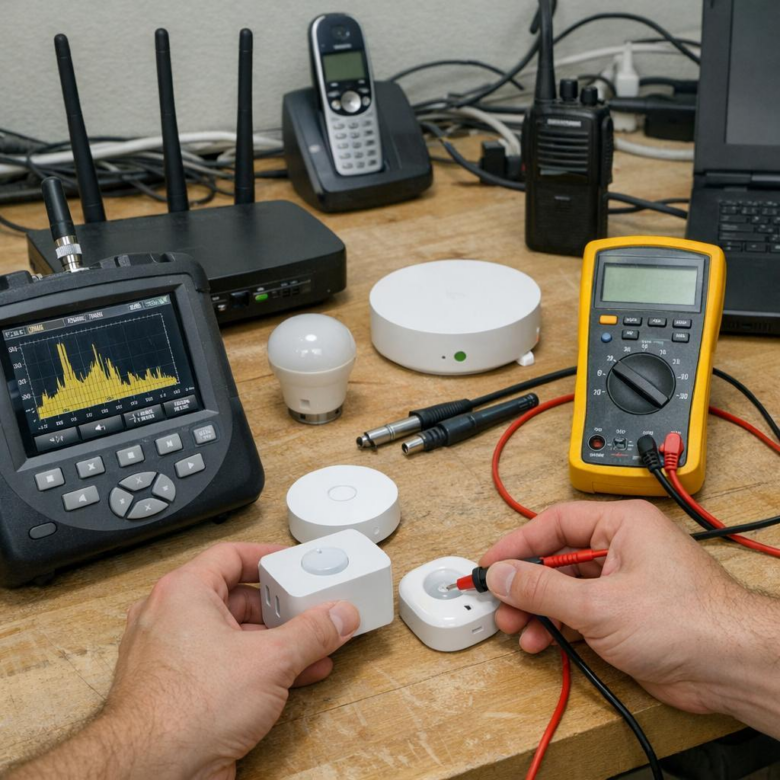
Start with a Zigbee channel scan before moving devices around. Tools like Home Assistant ZHA, Zigbee2MQTT, or a Wi-Fi analyzer app can help you compare your Zigbee channel against nearby 2.4 GHz Wi-Fi traffic, especially from routers, mesh Wi-Fi systems, baby monitors, and wireless security cameras.
A common real-world issue is Zigbee running on channel 11 while the home Wi-Fi router is blasting on 2.4 GHz channel 1. They overlap enough to cause delayed lights, missed sensor reports, and random smart plug dropouts, even when the Zigbee devices look “online” in the app.
- Scan channels: Check whether your Zigbee channel overlaps with busy Wi-Fi channels.
- Map devices: Identify which sensors, bulbs, and routers are far from the coordinator.
- Test signal quality: Review LQI/RSSI values and compare them before and after changes.
Next, build a simple device map. Mark the coordinator, powered Zigbee routers, and battery sensors, then look for weak points such as sensors connecting through a distant bulb instead of a nearby smart plug.
For signal testing, move one variable at a time. For example, place the Zigbee coordinator on a USB extension cable away from the computer or hub, then check whether LQI improves in Zigbee2MQTT; this often fixes interference from USB 3.0 ports and metal network cabinets.
If several devices show poor signal after mapping, adding a quality Zigbee smart plug as a router may be cheaper than replacing sensors. Diagnose first, then spend.
Advanced Zigbee Optimization: Channel Planning, Router Placement, and Common Mesh Design Mistakes
For reliable Zigbee mesh performance, start with channel planning before adding more devices. Zigbee channels 15, 20, and 25 often work well because they avoid the busiest parts of 2.4 GHz Wi-Fi, but the best choice depends on your router settings, neighbors, and local interference. Use a Wi-Fi analyzer app or platforms like Home Assistant with Zigbee2MQTT to compare signal quality, link quality indicator values, and dropped device behavior.
A practical example: if your Wi-Fi router is on channel 6 and your Zigbee coordinator is on channel 20, battery sensors may still fail if the coordinator sits beside the router, NAS, or USB 3.0 hub. I’ve seen stable networks improve simply by moving the Zigbee USB dongle onto a 1-2 meter extension cable and placing it away from metal shelves and high-power electronics. Small placement changes can cost nothing but perform like a network upgrade.
- Place powered Zigbee routers strategically: smart plugs, in-wall switches, and dedicated repeaters should sit between the coordinator and weak end devices.
- Avoid router clustering: five repeaters in one room will not help sensors at the far end of the house.
- Do not rely on battery devices: motion sensors, contact sensors, and buttons usually do not route traffic.
Common mesh design mistakes include changing Zigbee channels too often, pairing all devices beside the hub, and buying cheap repeaters with poor firmware support. For larger homes, the better investment is usually a few quality Zigbee smart plugs or DIN rail modules placed along real traffic paths. After changes, give the mesh several hours to rebuild before judging results.
Summary of Recommendations
Troubleshooting Zigbee interference is less about chasing a single “bad” device and more about making deliberate RF decisions. If the mesh becomes unreliable, prioritize channel separation from Wi‑Fi, strengthen router placement, and remove noisy or poorly positioned devices from critical paths.
Practical rule: change only one variable at a time, then observe the network before making the next adjustment. If problems persist after channel planning and mesh reinforcement, consider adding dedicated Zigbee routers or segmenting high-traffic areas. A stable Zigbee network is built through measurement, patience, and strategic placement-not guesswork.